
Smart Card
Update Date: 11/24/2025
What is the purpose of templates?
Templates are ideaShell’s AI generation feature that creates the content you need based on your requests, such as to-do lists, summaries, mind maps, flashcards, and even event planning. Beyond the content itself, templates also provide better display formats and more convenient, rich sharing options, making it easy for you to save as Word, PDF, and more, so the content can truly be integrated into your workflow.
Currently, we have many preset templates in the template library for you to use directly, and more will be added continuously in the future. If you have more personalized needs, you can customize templates to output content that better fits your requirements.
How to customize templates?
Customizing templates is actually very simple. If you’ve encountered AI before, you’ve probably heard of terms like “spell,” “command,” or “prompt.” Essentially, these are instructions that guide AI to generate what you want.
For example:
You input a simple meeting note:
“This morning’s meeting discussed the launch date of the new product. Everyone agreed to schedule it for early next month. We also mentioned the need to optimize user experience; the tech team said they need another week of testing. Finally, we discussed the marketing plan, and the marketing team promised to prepare the plan as soon as possible.”
Then you ask Ask AI to make it more formal:
“This morning, a meeting was held to discuss the launch date of the new product, with all attendees unanimously agreeing to release it in early next month. Additionally, the meeting emphasized the need to optimize user experience, and the tech team expects to require an additional week of testing. The meeting concluded with a discussion on the marketing plan, with the marketing team committing to prepare and submit the plan promptly.”
See? It’s that simple. ideaShell’s template cards not only help you optimize copy but also assist with analysis, document translation, report writing, and most other text-related needs.
Next, let’s see how to create a custom template in ideaShell, with AI assisting you throughout the process.
Tutorial for creating custom templates
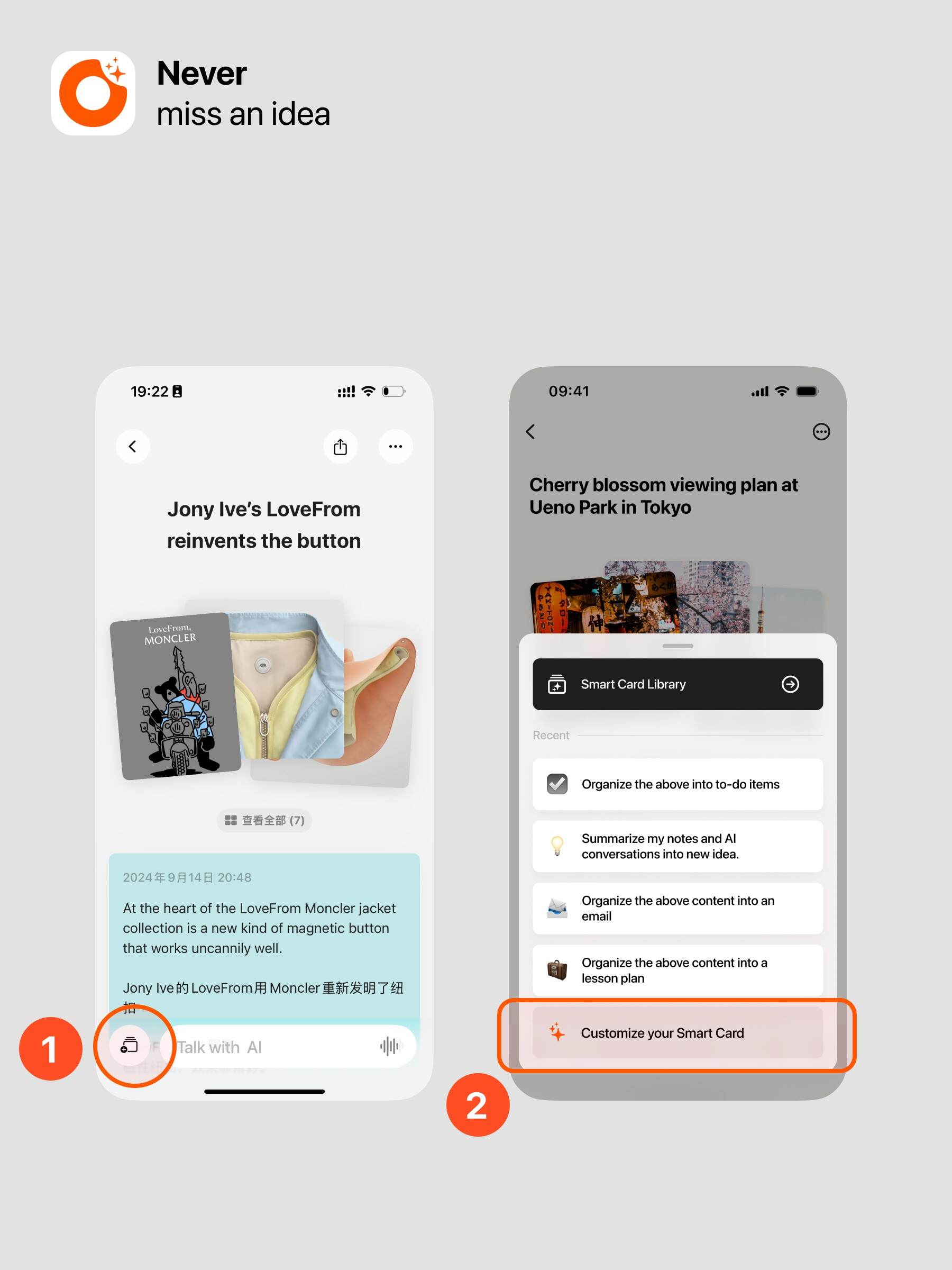
Follow these steps to create your own custom template, with AI guiding you the entire way:
-
Open the customization tool:
Click the button at the bottom left corner of the notes page. -
Start customizing:
Select “Customize Template.” -
Enter your requirements:
Describe what content you want the template to generate. Tip: For convenience, you can use the voice input button at the bottom right of the input box. -
Optimize with AI:
After entering your description, click “Optimize with AI.” AI will refine your input to ensure the template generates content that meets your needs. -
Save your template:
When AI displays the optimized instruction in the input box, click “Save” at the top right to complete saving. -
Further optimization:
If you’re not satisfied with the AI-optimized instruction, click “Want to improve further? Let AI help you” at the bottom. You can continue chatting with AI, describing your needs, and it will further refine the instruction. Save the changes once you’re satisfied.