Become the Fastest Person to Capture Ideas
Update Date: 11/24/2025
Recording Formats
Currently, ideaShell supports the following recording formats: audio (supports importing audio and internal recording), text, web clipping, hand-drawing, and scanned documents (temporarily iOS only);
long audio (over 10 minutes), web pages, and images are saved as attachments.
🎙️ Audio Recording
There is no limit on recording length, but there are limits on single transcription sessions (Premium users can transcribe up to 5 hours per session, Free Plan users up to 1 hour per session).
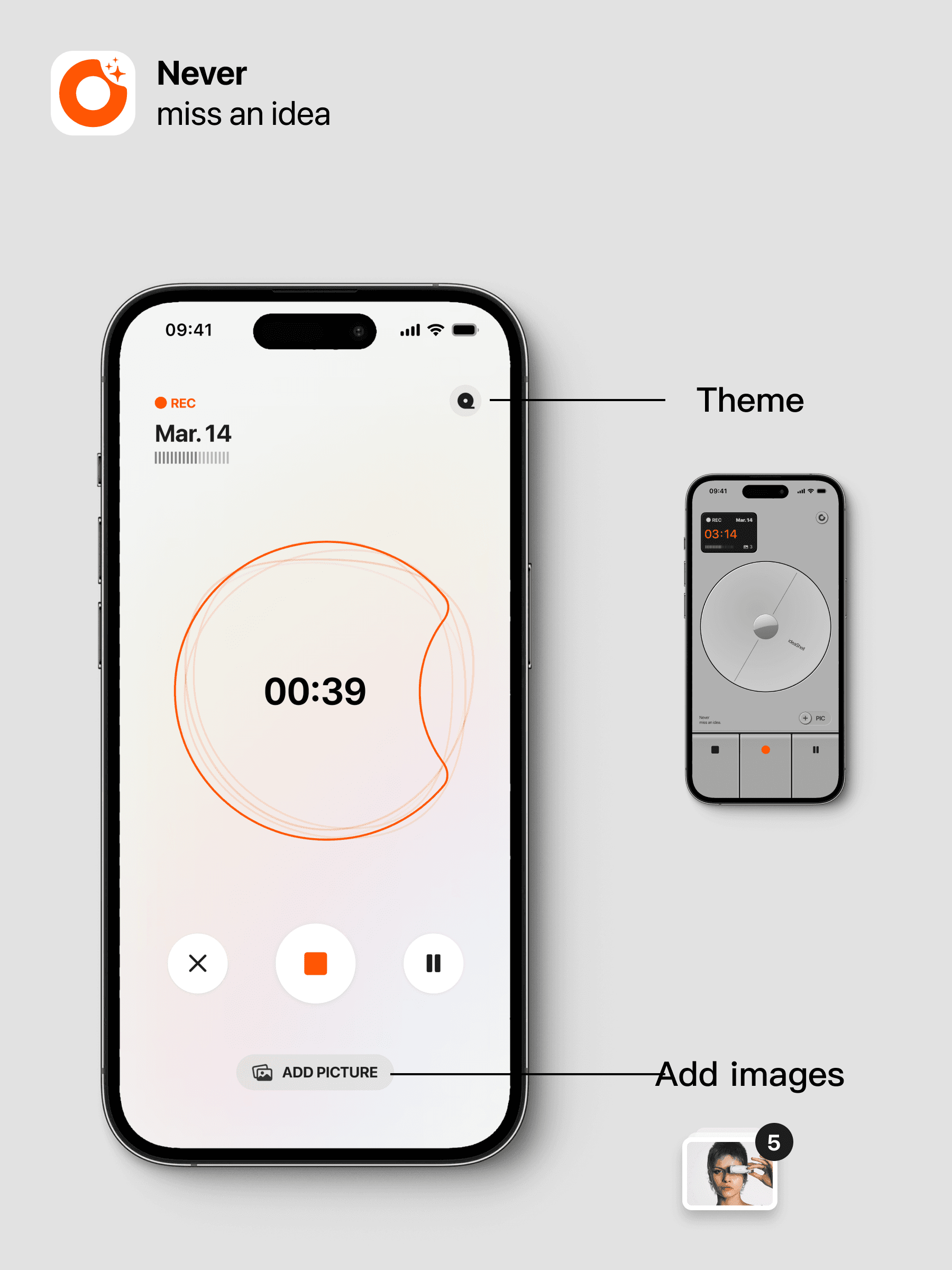
For recordings longer than 10 minutes, you need to manually click the transcription button to start AI transcription. The recording interface supports two theme options.
After recording, AI will automatically transcribe and optimize the content by removing fillers and unnecessary expressions, and enhancing formatting with appropriate punctuation and paragraphing to ensure readability and clarity. We do not alter or “polish” your original content to guarantee accuracy. However, if you wish to edit, you can select your preferred rewriting style in the Smart Card and customize the content as needed.
You can add image attachments during recording to enrich the content and better express the source of your ideas.
⌨️ Text Recording
The traditional way of recording: input text via keyboard. You can add images and tags during the process. After saving, AI will automatically process the content by adding titles, summaries, and tags, but will not modify any of your input text.
Multiple Quick Ways to Start Recording
To help you quickly start recording and never miss any inspiration or idea, we have designed multiple launch methods:
Regular Launch
On the homepage, you can directly click to start voice or text recording.
Launch via Widgets
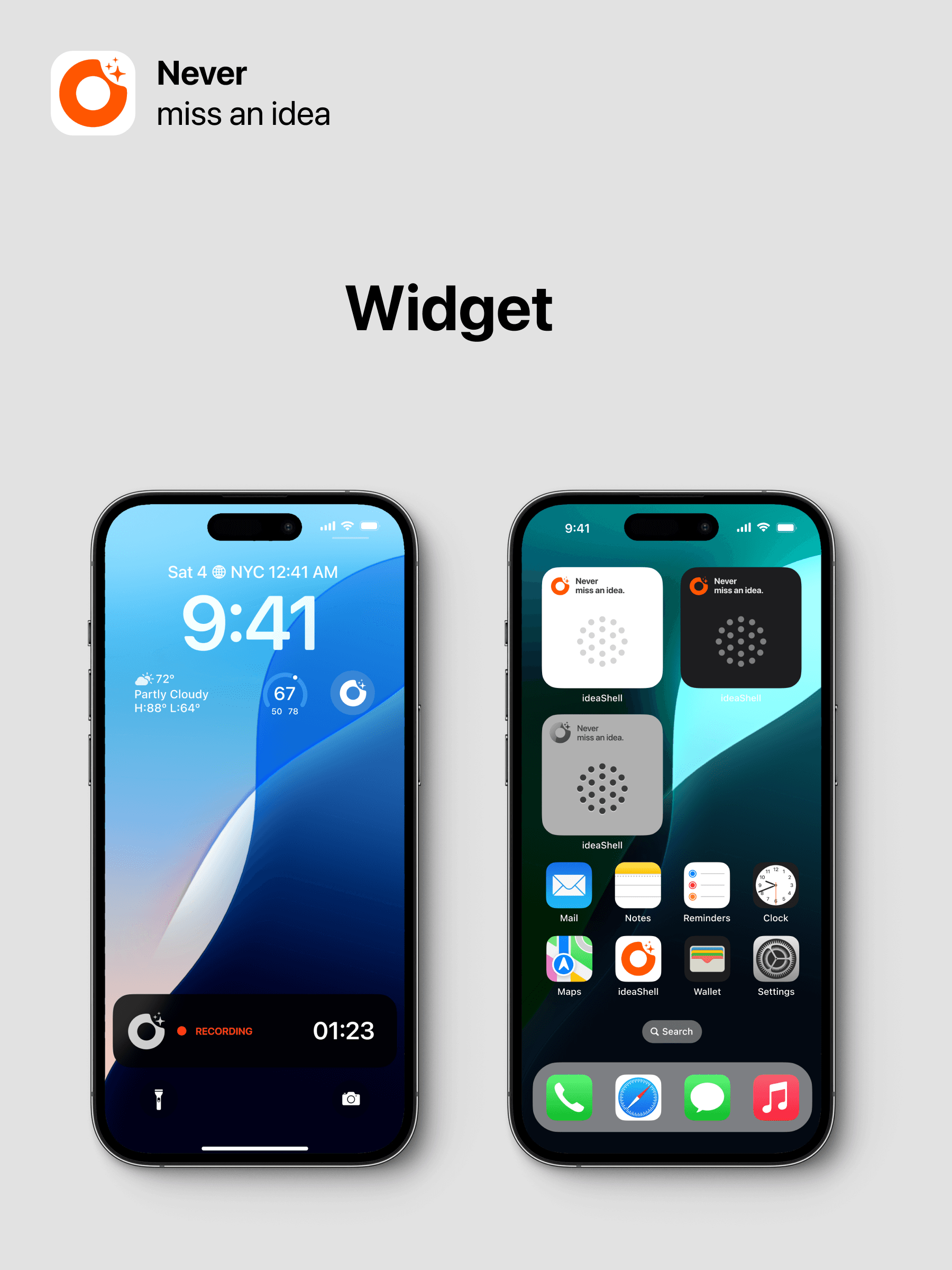
We have designed three widgets: two for the home screen and one for the lock screen. After adding them, you can tap to directly open the voice recording interface.
Launch by Long Pressing the Icon
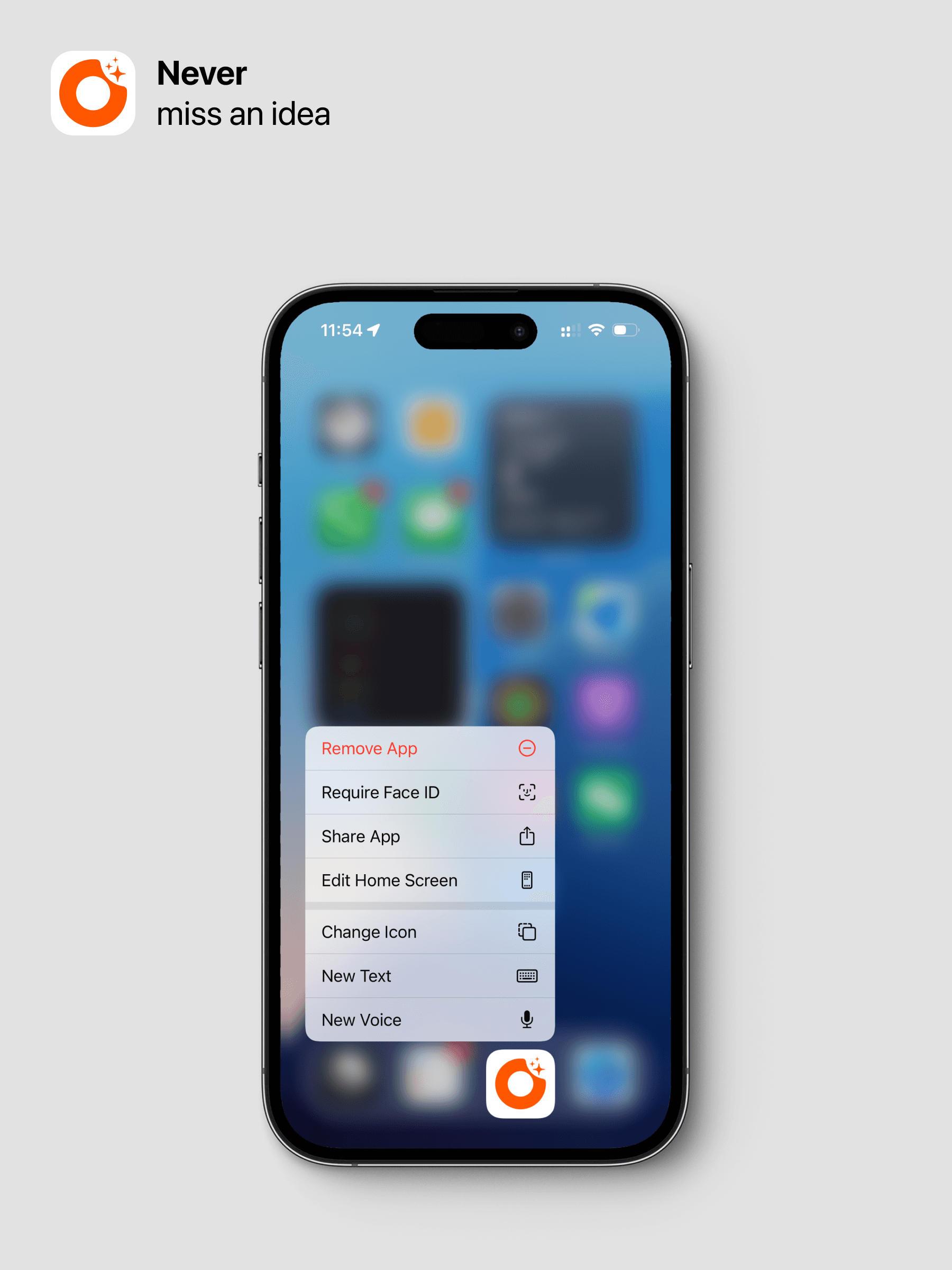
Long press the icon on the home screen to open the menu, then select “New Voice” or “New Text” to start recording.
Launch via Siri
We have integrated Apple Siri, so you can start recording with a voice command:
“Hey Siri, record an idea with ideaShell”
“Hey Siri, open ideaShell to record a new idea”
This will automatically open ideaShell and start voice recording. If your phone is locked, you may need to unlock it first.
Launch via Action Button
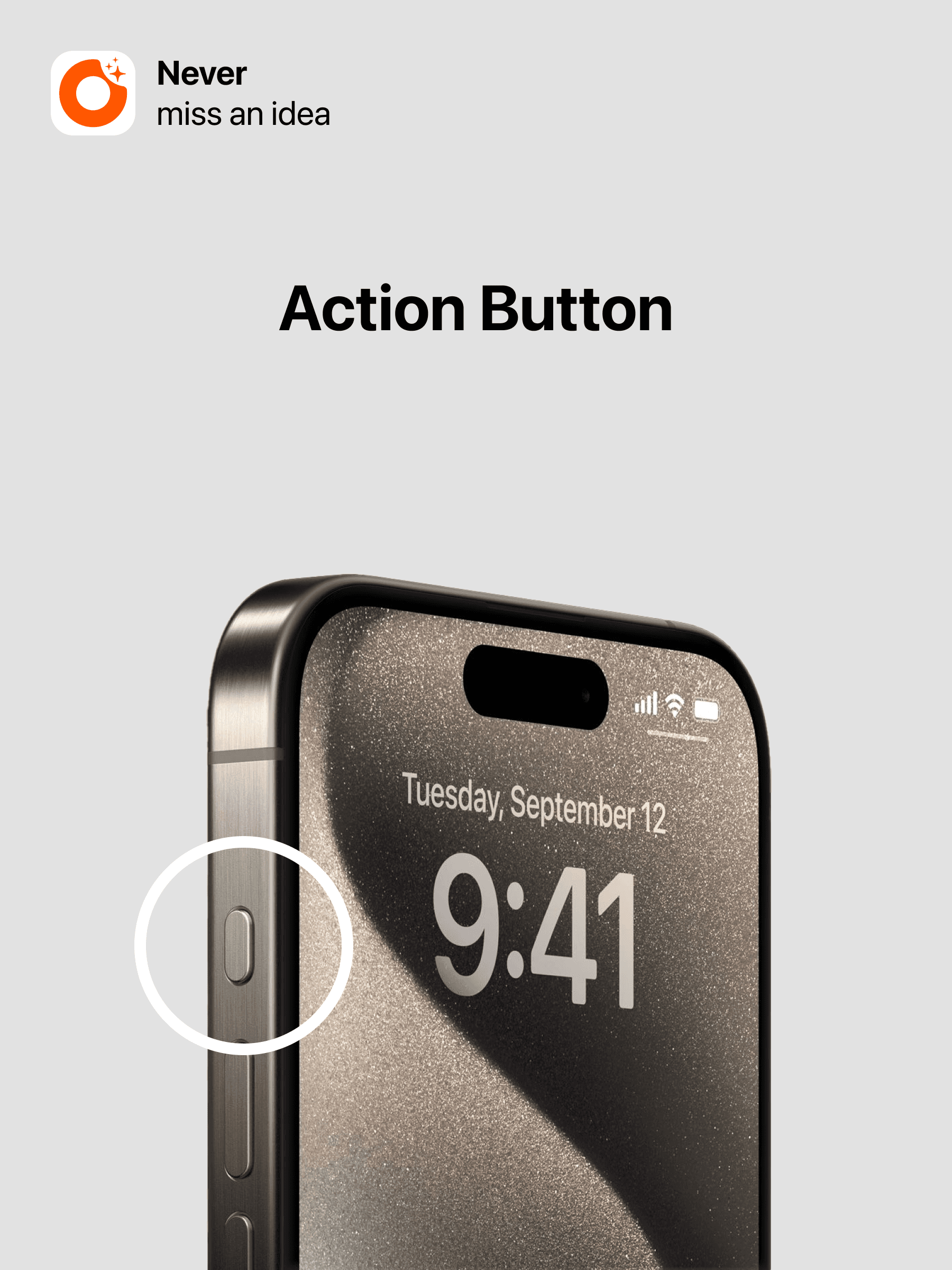
For iPhone 15 Pro series and newer models, you can set the action button to start recording: long press to quickly input voice or text. You can find instructions and guidance in the app under Settings > Quick Recording > Action Button.
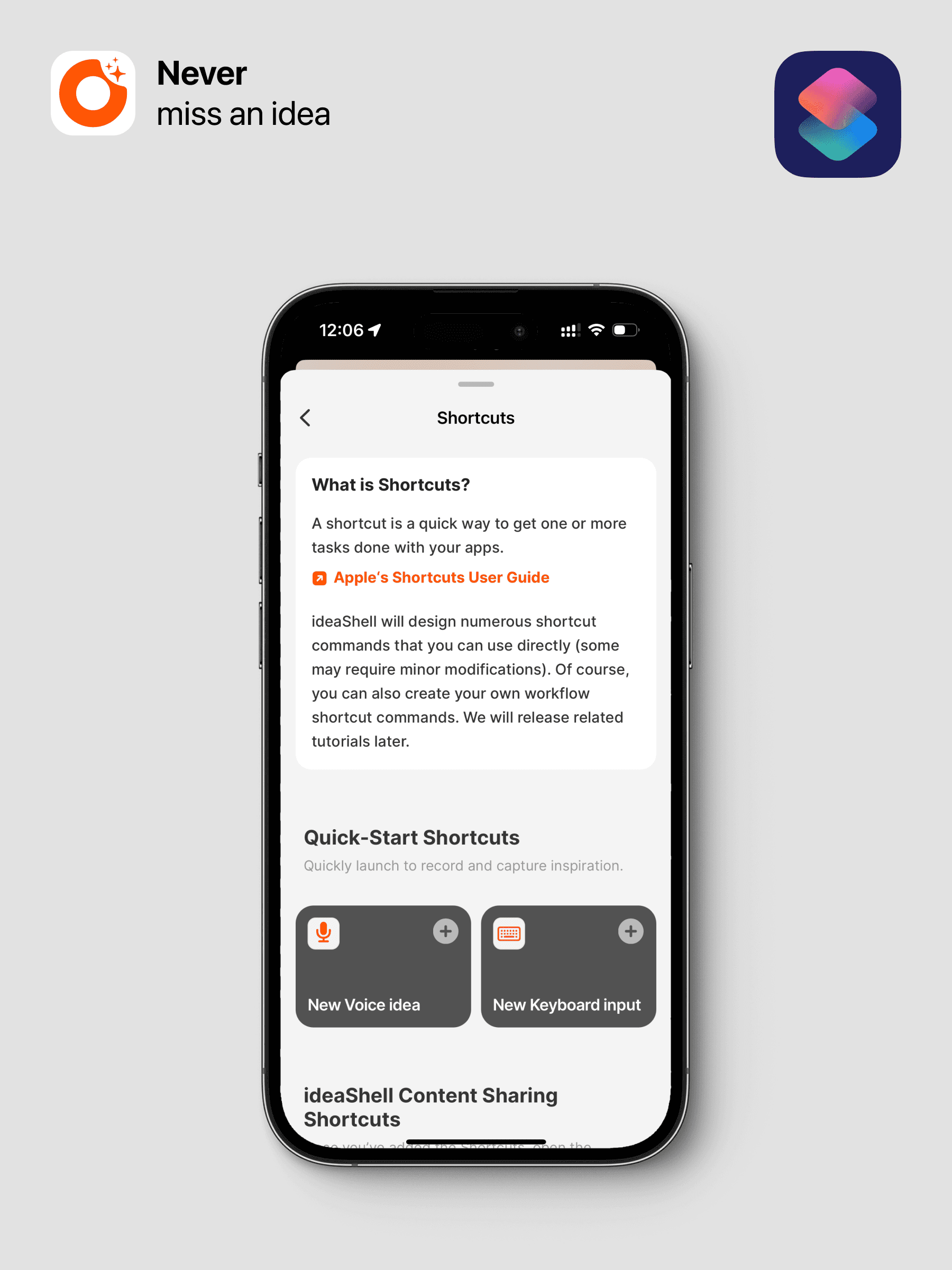
Launch via Shortcuts
Shortcuts are one of the most efficient quick input methods on iOS. ideaShell presets voice and text input options. You can customize them in Shortcuts or select your preferred method in the app under Settings > Quick Recording > Shortcuts.
Additionally, some system settings can further enhance convenience. For example, in iPhone Settings - Accessibility - Touch - Back Tap, you can assign ideaShell’s shortcut to start recording by double-tapping the back of your iPhone. You can also customize Siri’s trigger methods.