
Apple Watch
Update Date: 09/21/2026
⌚ Get Started with Apple Watch
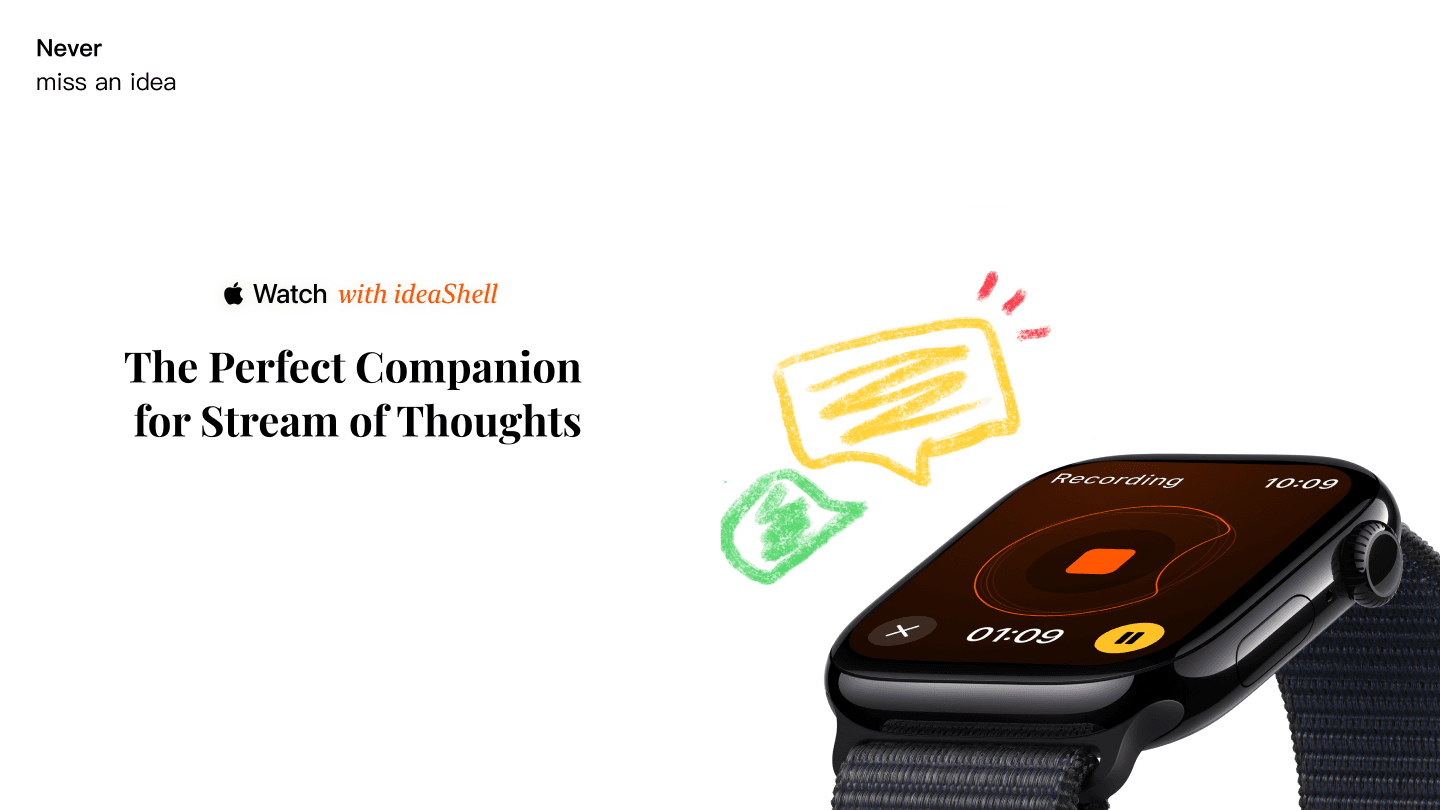
Apple Watch has two main features: Recording captures your content, and Ask AI sends tasks to AI. Both support quick access and gesture control. Follow the instructions for the feature you want to use below.
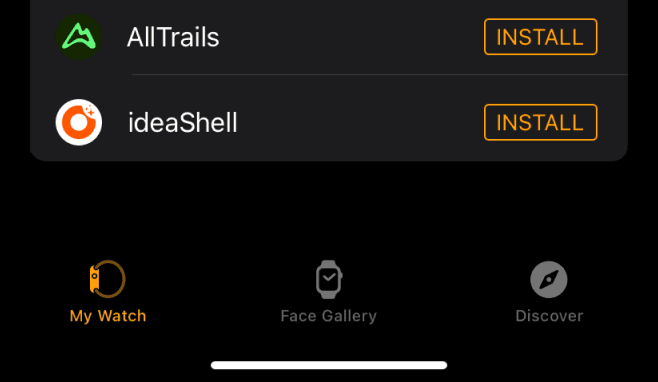
Open the Watch app on your iPhone, find “ideaShell” under My Watch, tap Install, and wait a moment for installation to complete.
🎙️ Recording
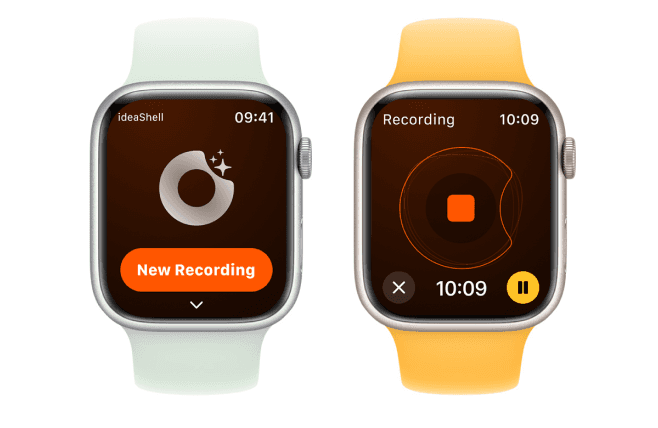
Record audio on your watch and sync it to your phone for transcription and organization. Recording supports watchOS 9.0 and later.
● Open the app directly to record (tap the orange square in the middle to stop recording)
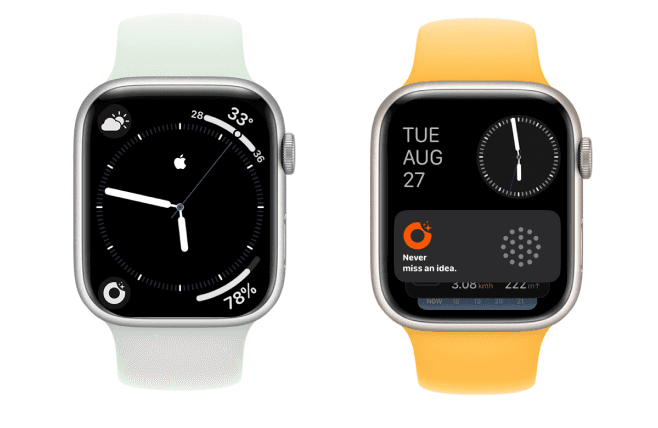
Quick Access from the Watch Face
● Use the quick launch button on the watch face or use Smart Stack widgets (supported on watchOS 10 and later)
👆 Start Recording with Double Tap
Open the Watch app on your phone, go to General - Gestures - Double Tap, and enable it.
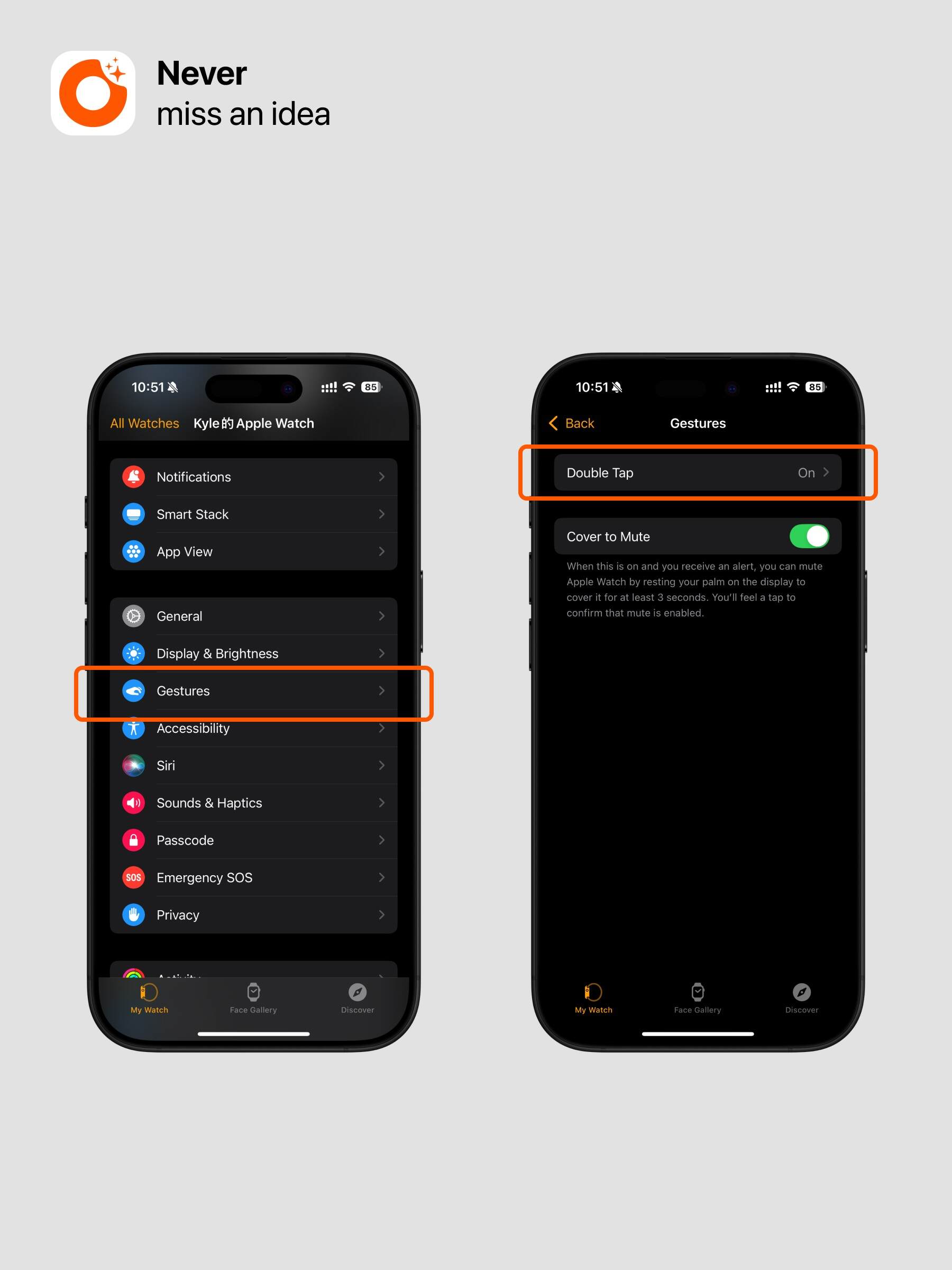
Configure Smart Stack according to your watchOS version:
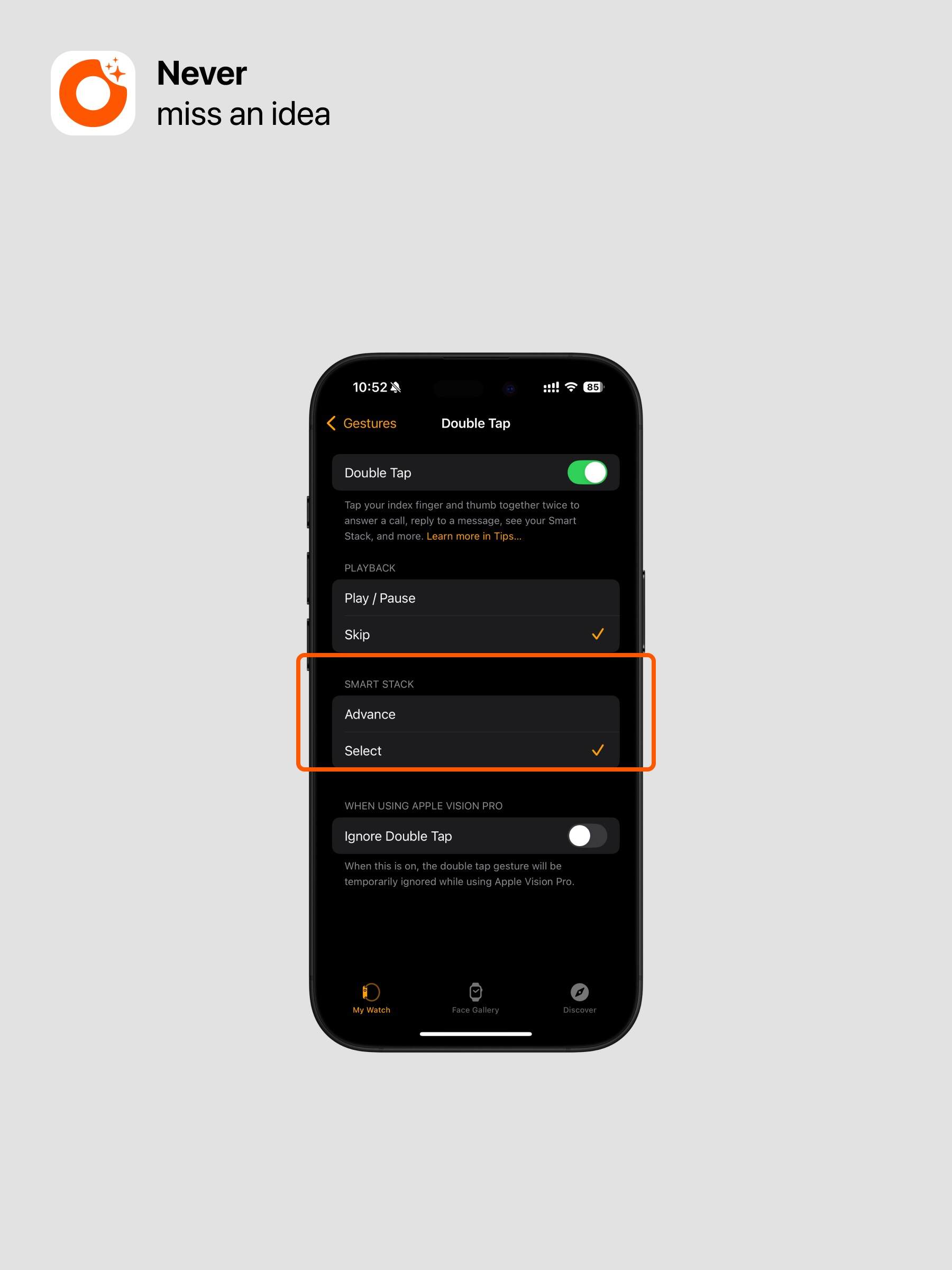
watchOS 27: The Smart Stack “Advance / Select” option has been removed, so you no longer need to set it to “Select.” In Smart Stack, tap your thumb and index finger together once to select, or twice to switch cards.
Versions earlier than watchOS 27: You still need to set the Smart Stack option under Double Tap to “Select.” The settings screenshot below applies to these earlier versions.
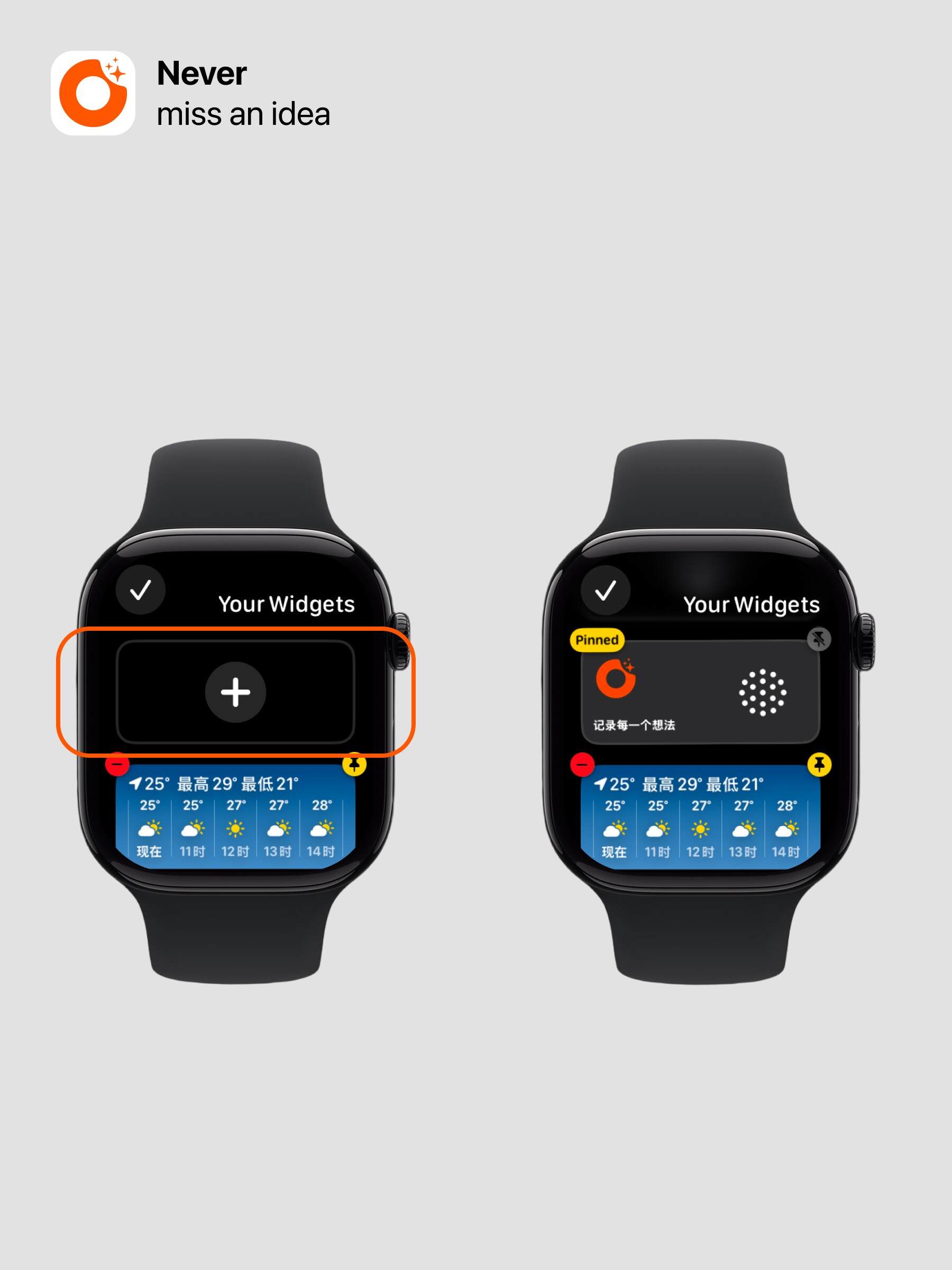
Swipe up from the bottom of the Apple Watch watch face, long press a Smart Stack card, add the ideaShell Smart Stack card, and pin it to the top.
Start recording on watchOS 27: After adding and pinning the ideaShell Smart Stack card, tap your thumb and index finger together twice on the watch face to open Smart Stack. Then tap them together once to select the ideaShell card and start recording. If a different card is selected, first use the two-tap gesture to switch to ideaShell, then the single-tap gesture to select it. (We recommend pinning ideaShell in the first position.)
Tip: The two-finger double tap feature is available only on S9 and later models and Ultra 2.
🖐️ More Recording Gestures: Accessibility
For models without Double Tap, you can use this method to enable gesture operation.
Step 1: Enable and Set Gestures
- Tap Accessibility.
- Tap AssistiveTouch and turn it on.
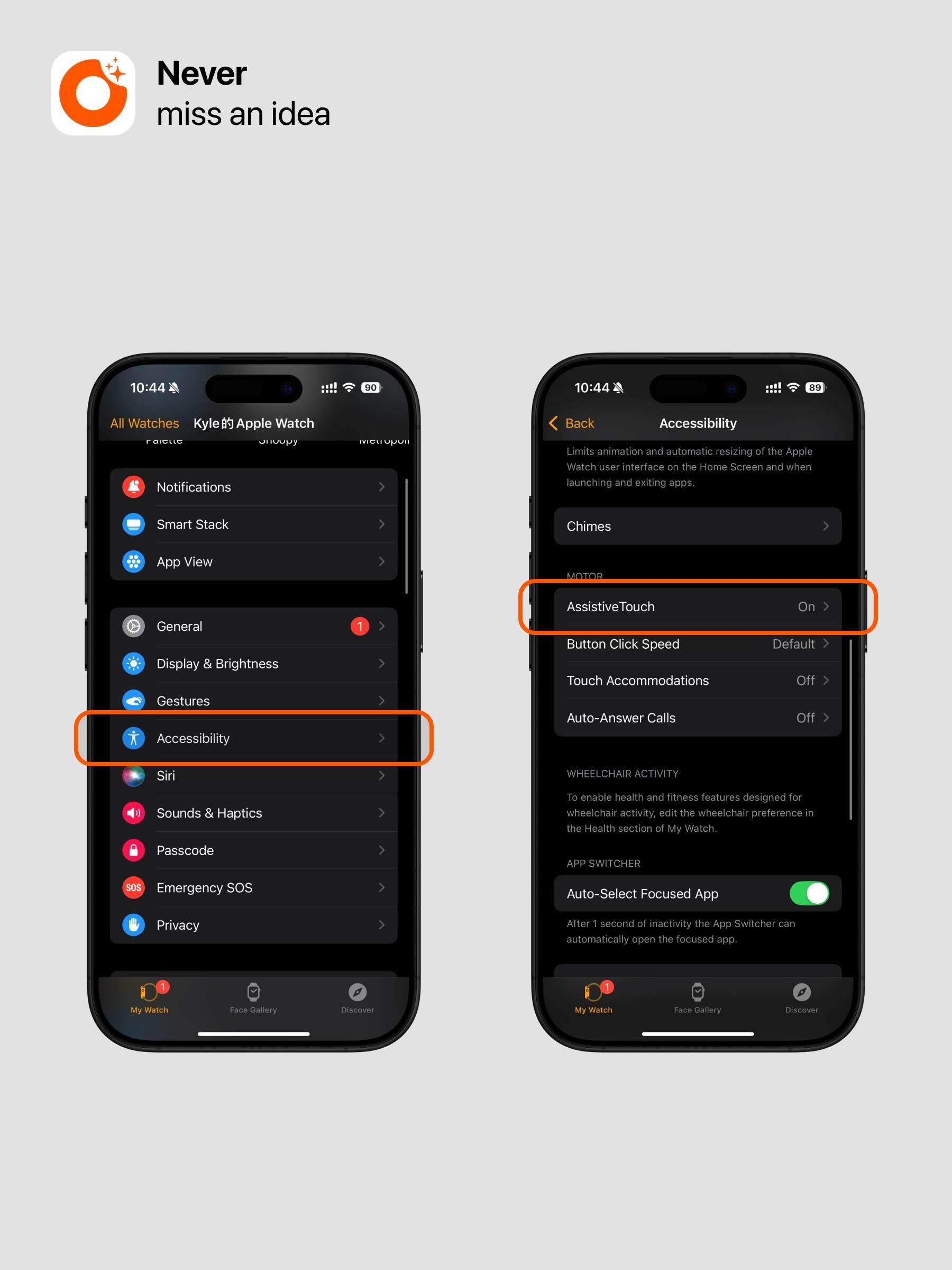
- Tap Hand Gestures and turn them on.
- Tap Activation Gesture and set it to “Double Clench” to start AssistiveTouch. You can also set it to “None” so AssistiveTouch starts directly when you raise your wrist, which saves one step but may cause accidental activation.
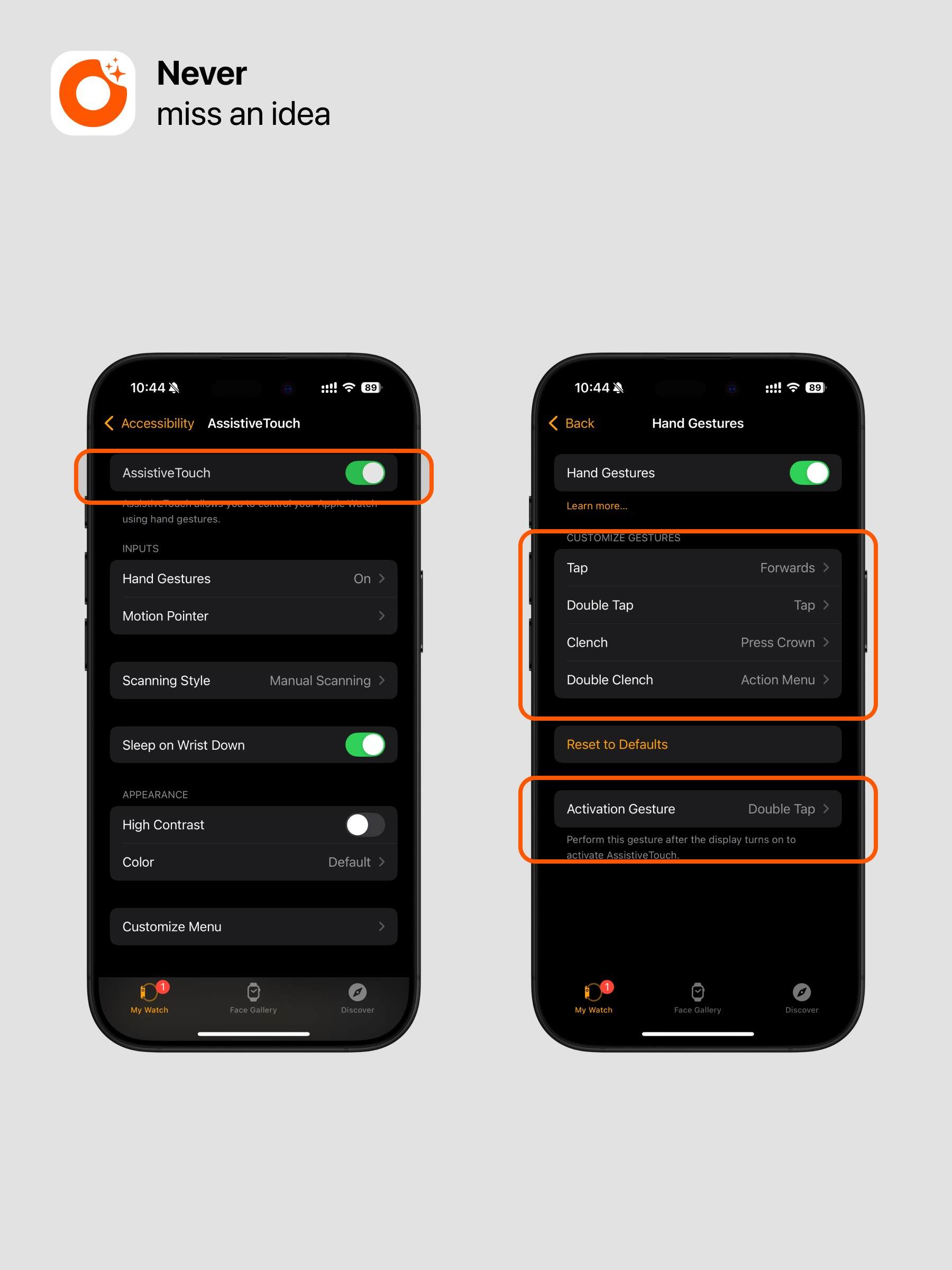
Step 2: Enable Wake on Wrist Raise
- Tap Display & Brightness.
- Tap Wake on Wrist Raise and turn it on.
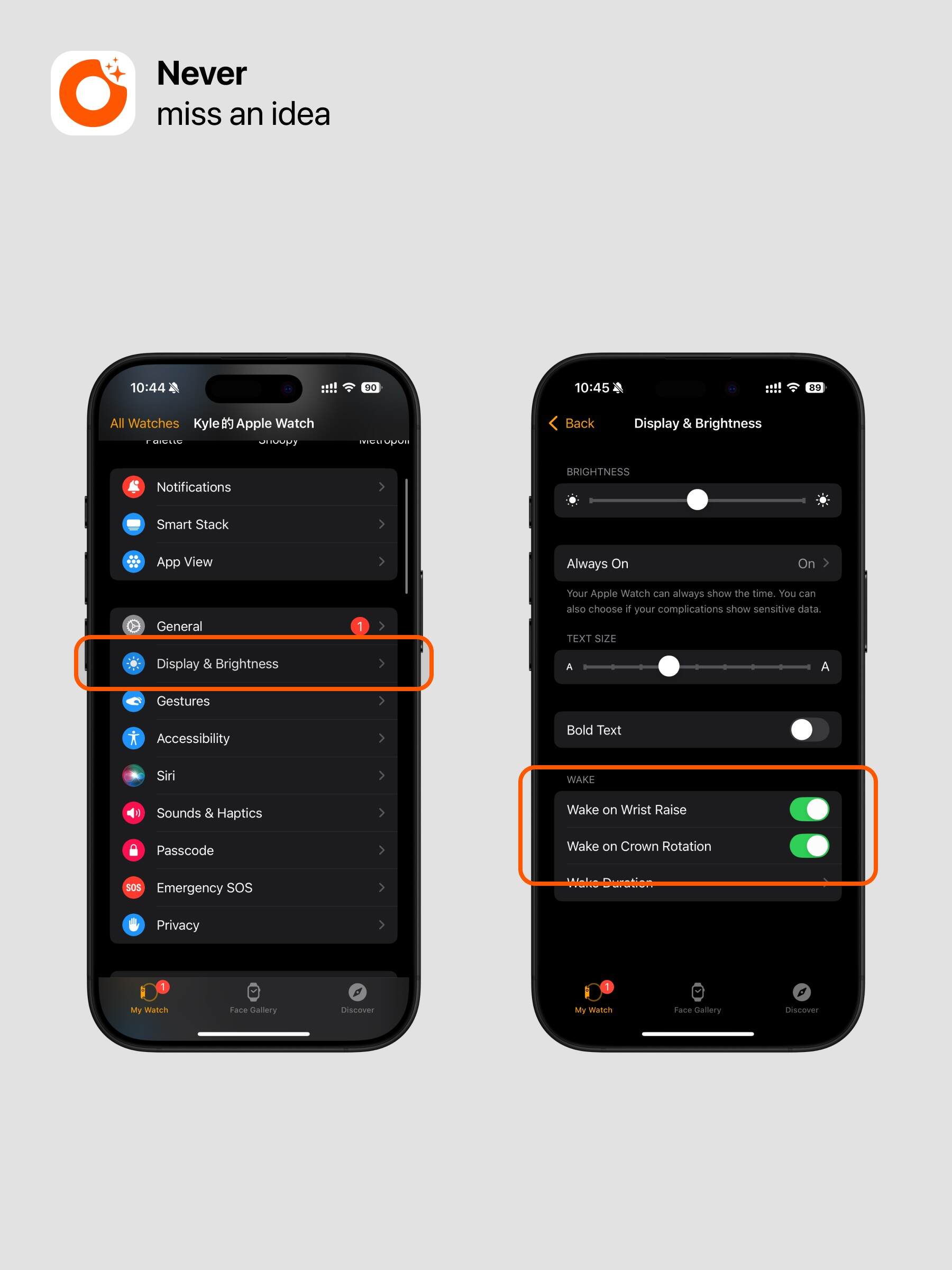
Step 3: Watch Face Settings
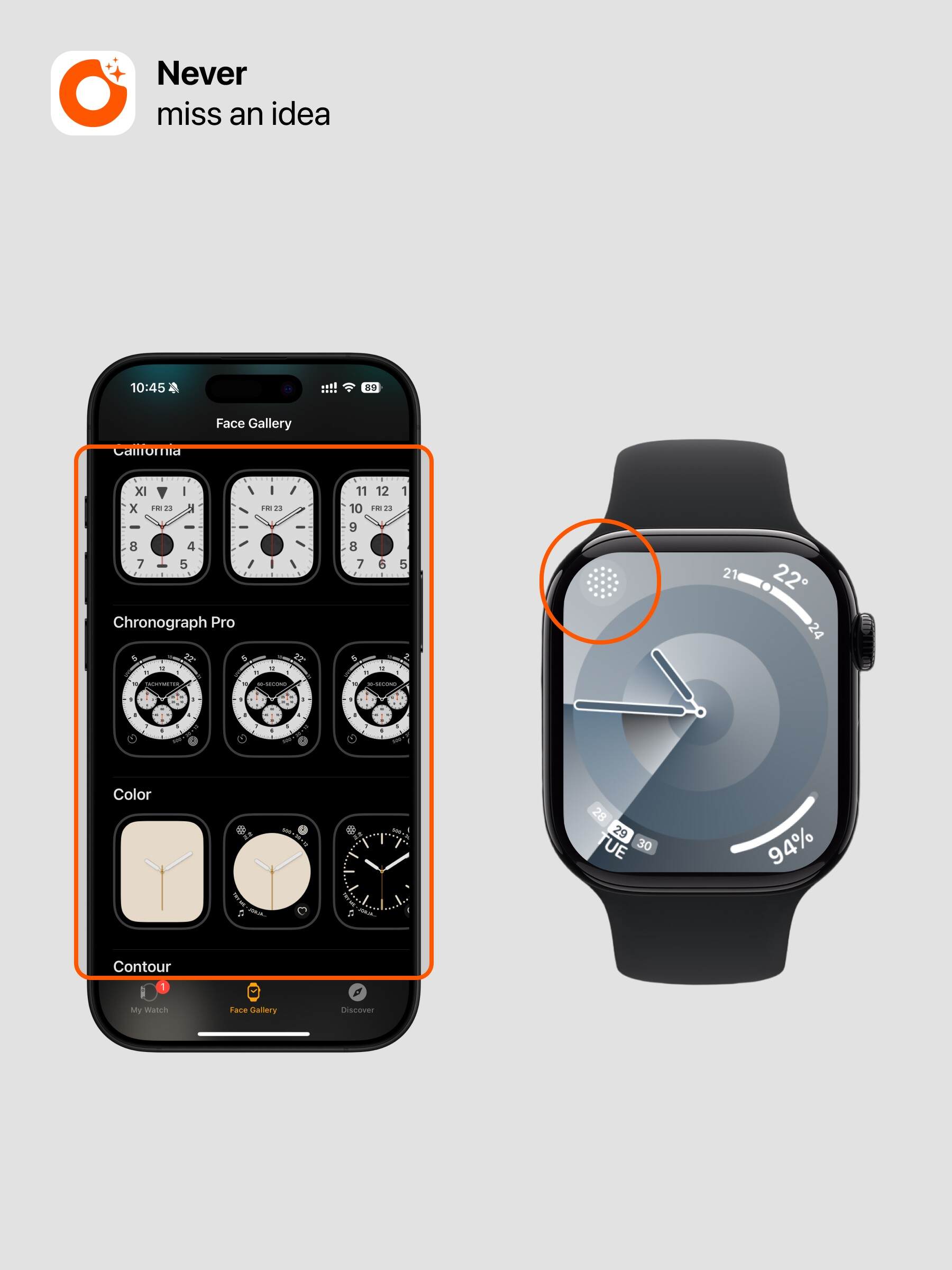
🔘 Quick Recording: Ultra Action Button
This feature is only supported on Apple Watch Ultra.
Step 1: Add the Shortcut
- Tap here to add the shortcut.
- After it is added successfully, you can see the shortcut shown below in Shortcuts.
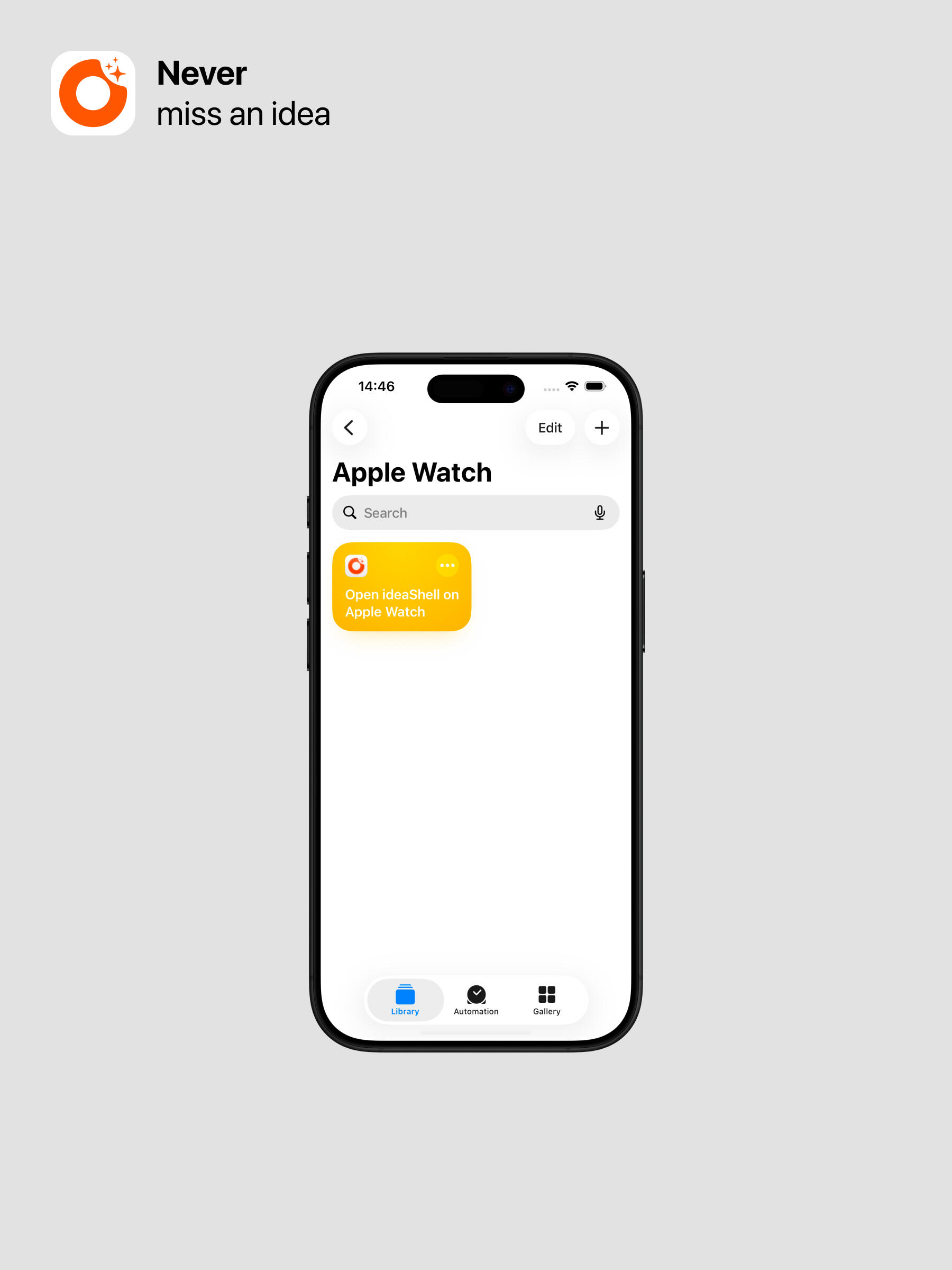
Step 2: Set Up the Shortcut
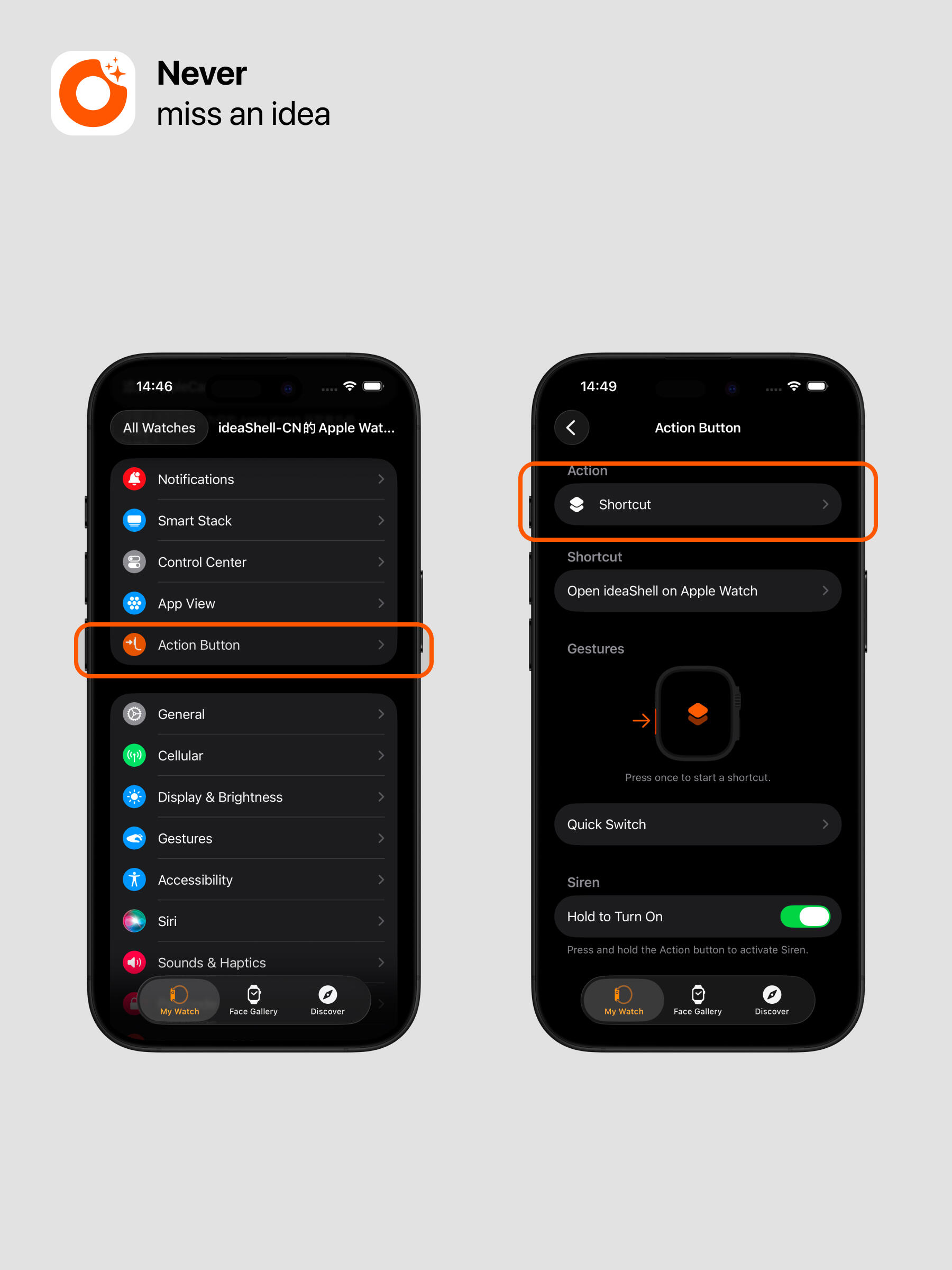
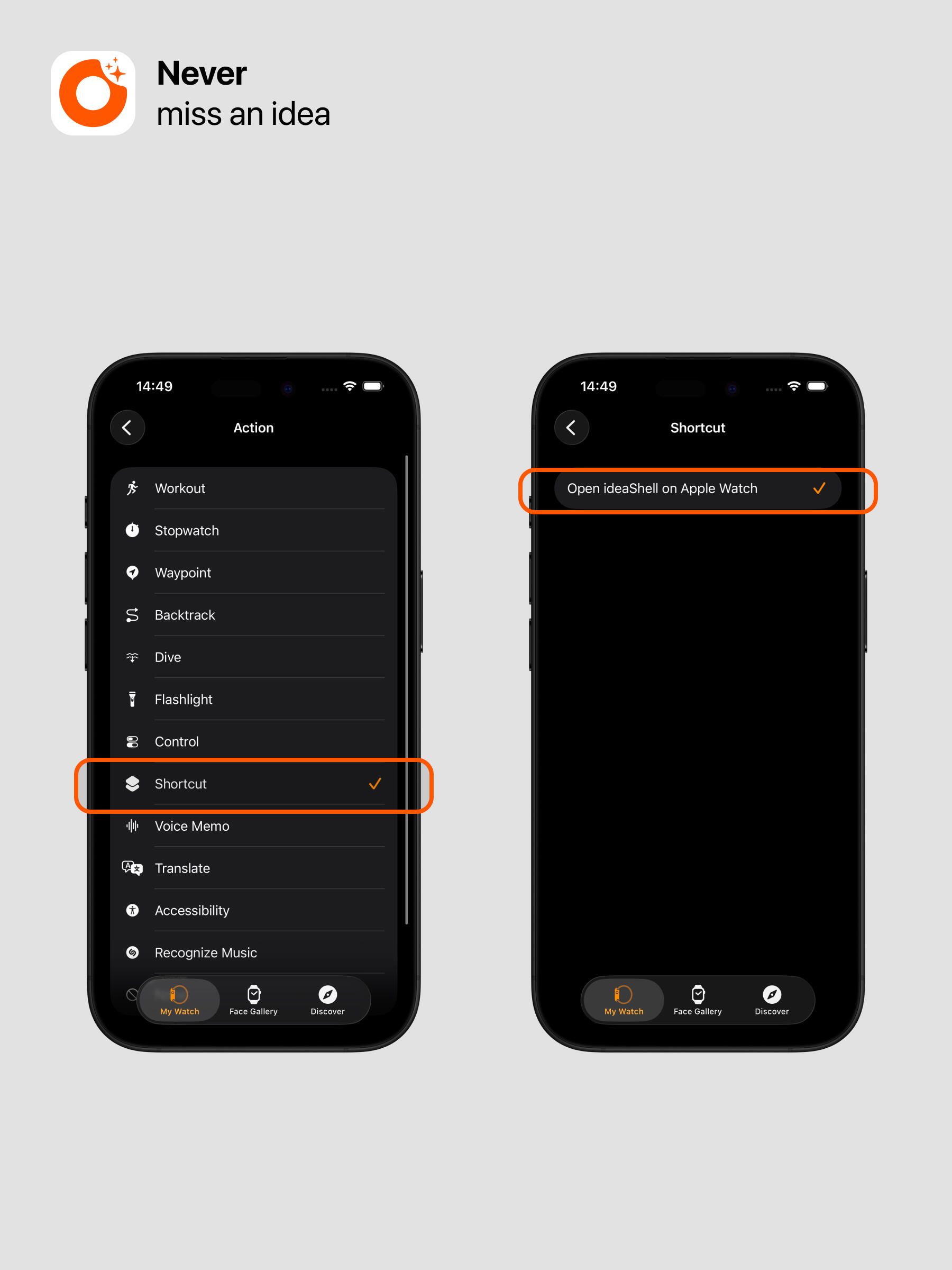
- In the Watch app on your iPhone, tap: Action Button - Set Action - Shortcut.
- On the Action Button screen, set the shortcut and choose: Open ideaShell on Watch.
Step 3: Enable Auto Recording When the App Starts on Watch
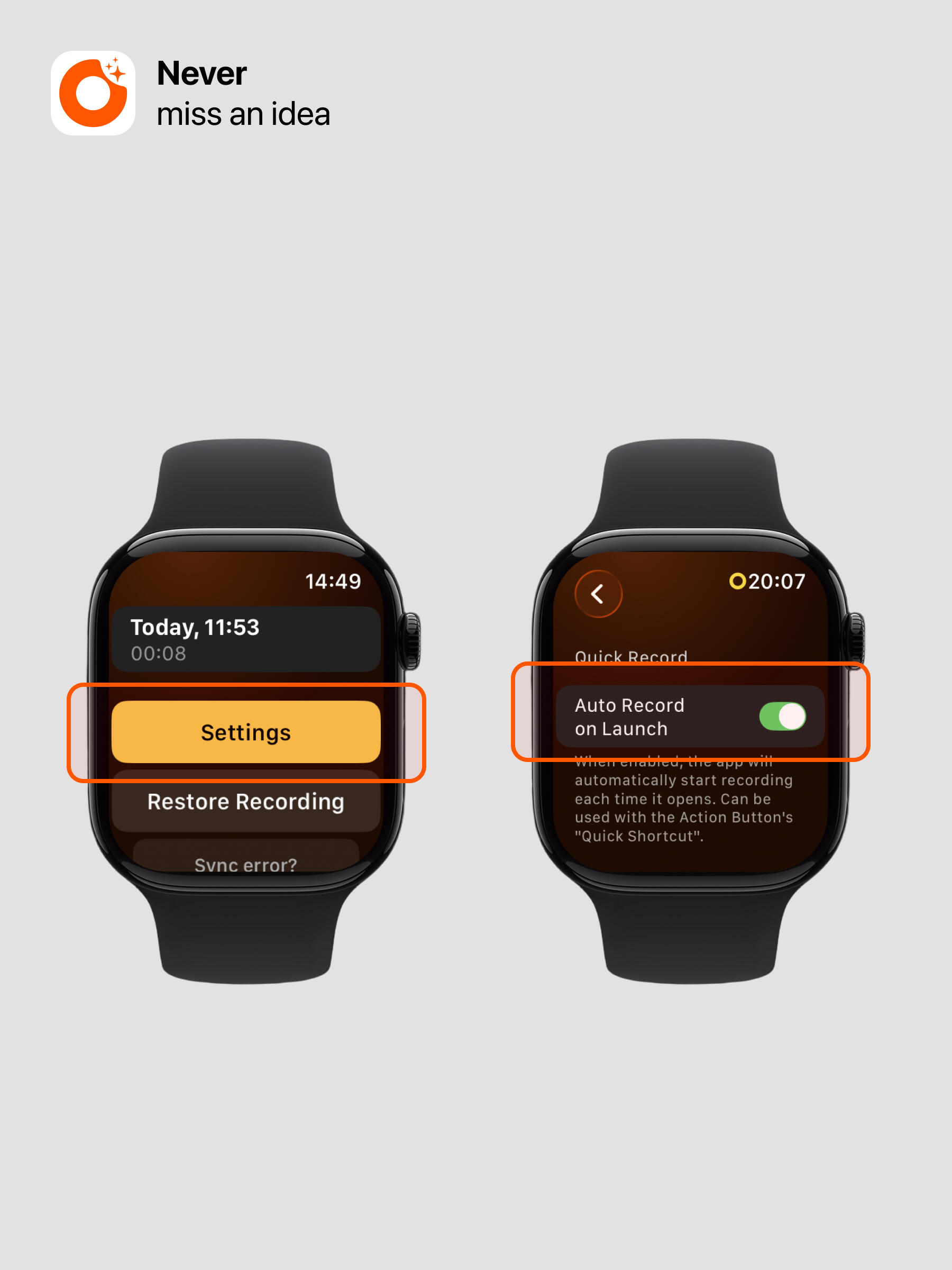
- Open the ideaShell app on your watch. Swipe up on Home to see the settings entry, then tap: Settings - Start Recording Automatically on Launch.
This setting applies to Apple Watch Ultra only. Once enabled, tapping the ideaShell app icon on your watch (or launching the app with the Action button) starts recording immediately, so you no longer need to open the app and tap the record button, which saves you one step.
📞 Keep Calls from Interrupting Recording on Apple Watch
To keep an incoming call on your iPhone from interrupting a recording on Apple Watch, set it up as follows:
- Open the “Watch” app on your iPhone.
- Go to “General” → “Airplane Mode”.
- Turn off the “Mirror iPhone” switch.
- When recording with Apple Watch, turn on Airplane Mode on the watch.
Recording Sync and Troubleshooting
Recordings on Apple Watch normally sync to your iPhone automatically. If this is your first time using it, or a recording does not sync automatically, work through the following checks in order:
- Make sure ideaShell is installed from the Watch app on your iPhone: open the Watch app, find “ideaShell” under My Watch, tap Install, and wait for the installation to complete.
- Make sure Apple Watch and iPhone are connected normally, then restart Apple Watch and check again.
- Record a short new recording on the watch and check whether it syncs; once one syncs successfully, later recordings usually resume syncing automatically.
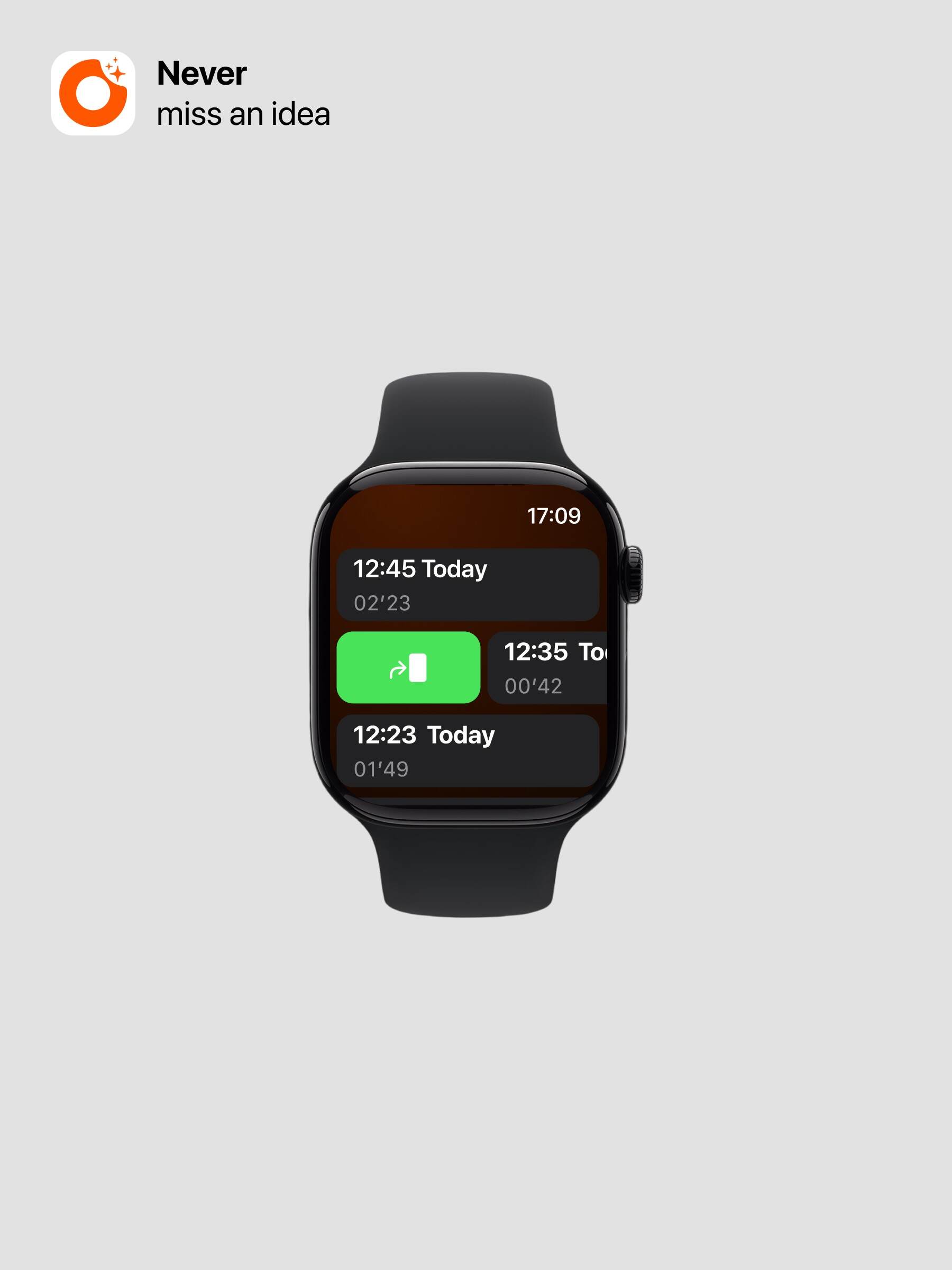
- If a recording still has not synced, swipe right on it in the watch recording list and tap the green “Resend” button to send it to your phone again.
If it still does not sync after the steps above, clear the watch sync cache and resend:
- If the phone already shows a record that failed to sync, long press it and delete it first.
- On your iPhone, open ideaShell, tap your avatar to enter “Settings” → “About” → “Cache”, and choose “Clear Watch Sync Cache”.
- On Apple Watch, open ideaShell, swipe down and tap “Sync Issue”, then tap “Clear Watch Sync Cache”.
- Return to the list of recordings that failed to sync on the watch, swipe right on the recording, and tap the green “Resend” button.
🤖 Ask AI
Open Ask AI on Apple Watch, speak your request, and send it. When the task is complete, your watch receives a notification with a short text preview. You can check whether the task is done on your watch; open your phone or computer to read the full response.
Quick Access from the Watch Face
- Edit your watch face and add the Ask AI “Send Instruction” shortcut button.
- Tap the shortcut on the watch face to start speaking and describe what you want AI to do.
- When you finish speaking, tap “Send Instruction” and let AI handle your request.
Gesture Control
Gesture control throughout: On a supported watch with the appropriate setup, you can also use the two-finger double-tap gesture to launch Ask AI, speak your request, and send it with a gesture. The entire flow, from launching to speaking and sending, can be completed using voice and gestures. This gesture entry opens Ask AI; distinguish it from the regular recording entry.
🔗 Other Recording Devices
ideaShell will gradually connect to different recording devices around you so they can become entry points for capturing inspiration, meetings, classes, interviews, and daily ideas. In addition to Apple Watch, we will continue to support smart wearables such as Android Wear, OPPO Watch, and HUAWEI Watch. You can check current support status on the “Devices” page and follow the on-screen instructions to connect or authorize a device.
For connected devices, recordings sync to ideaShell for transcription, organization, Q&A, and content generation. This lets you capture on the most convenient device, then return to ideaShell to continue managing and using the content.