How to Import/Export Audio Files?
Update Date: 11/24/2025
Importing Audio
We support not only recording but also importing audio. You can import your voice recordings or audio from videos in the following three ways:
-
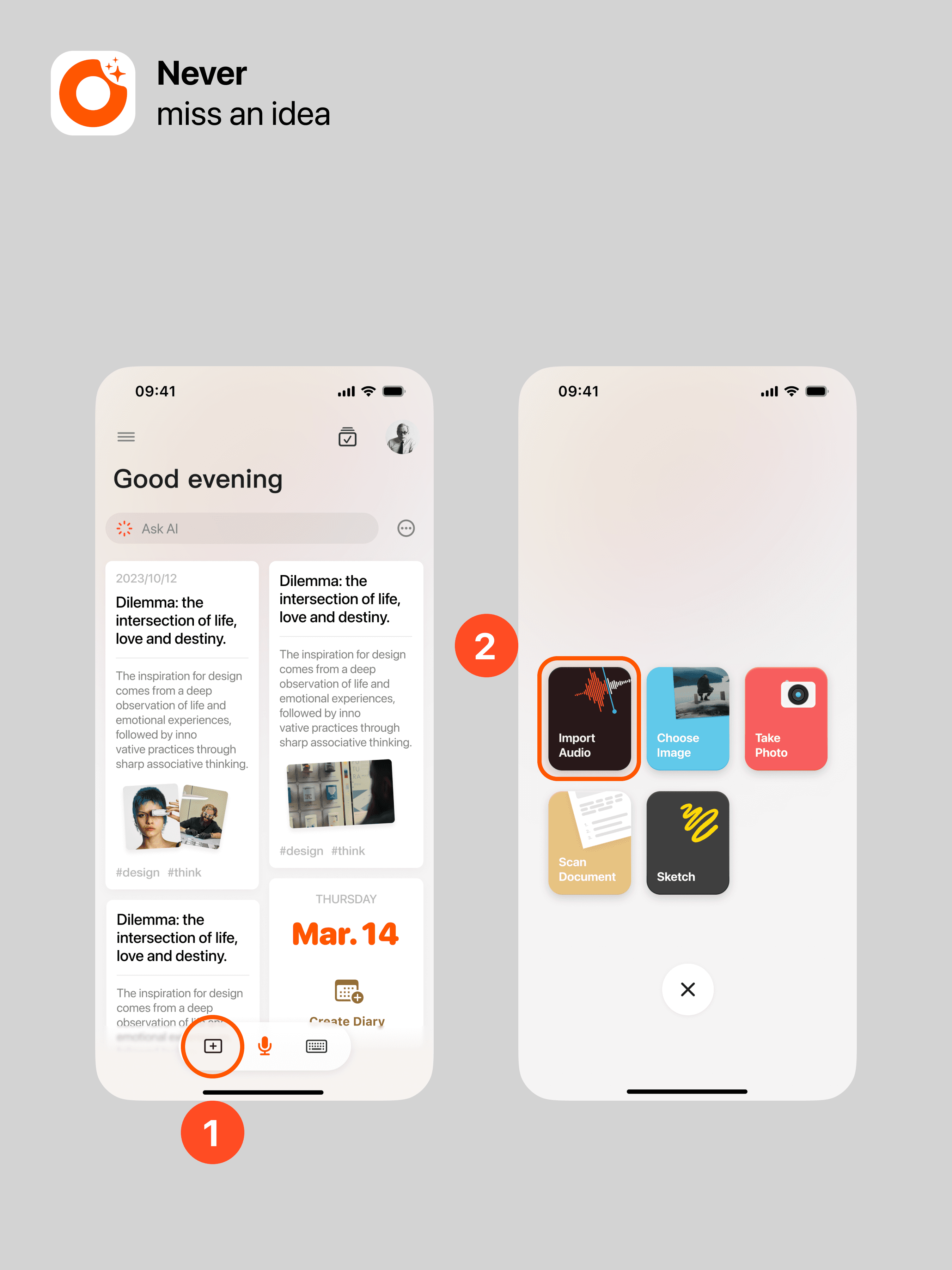
On the home page, use the “+” button, select “Import Audio,” then choose an audio or video file from your photo library or “Files” (if it’s a video file, the audio will be extracted automatically).
-
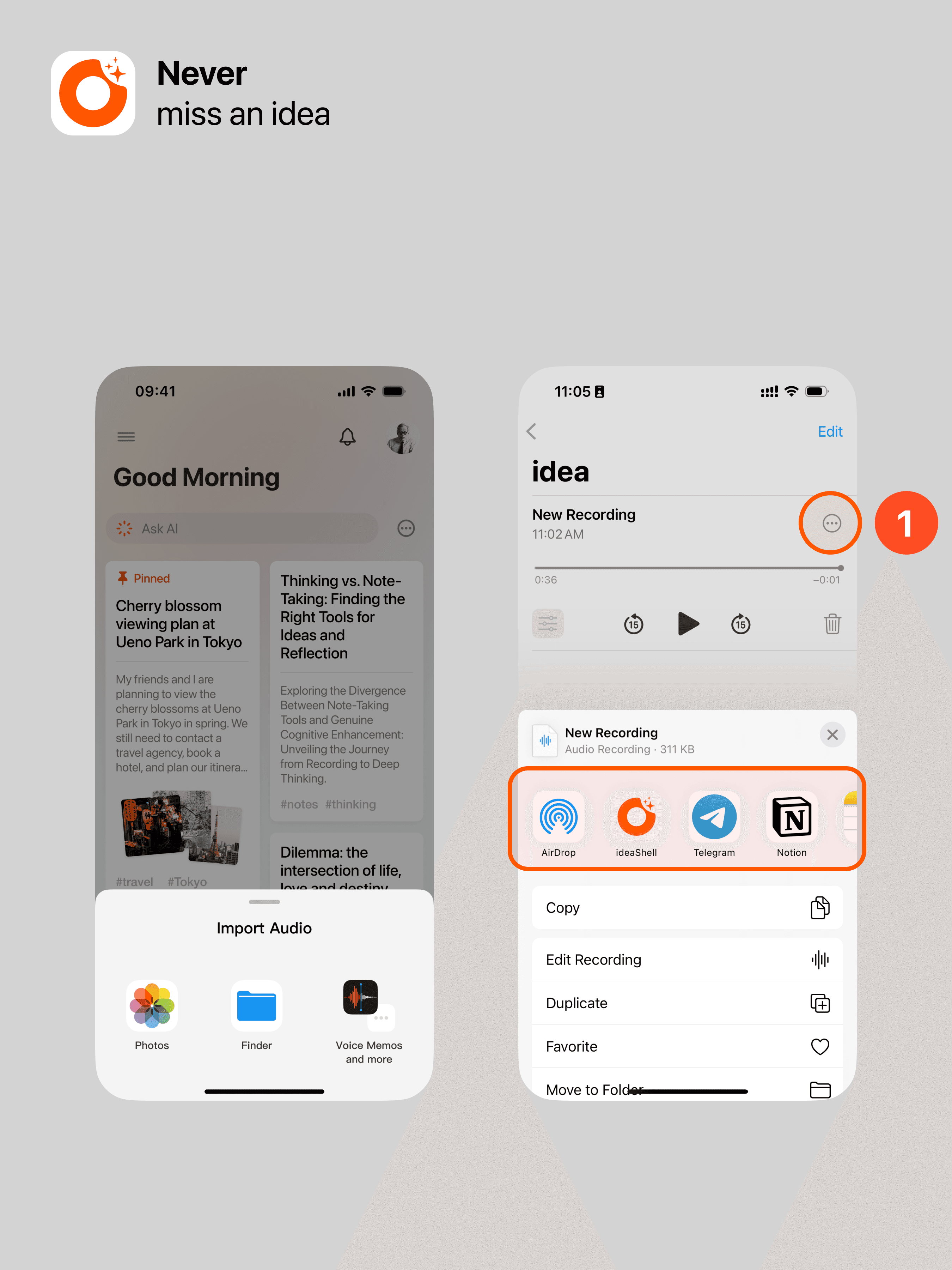
Import from third-party apps. Simply open the file in the third-party app, choose “Share,” or open the file with another app.
Special reminder: Supported audio formats include AAC, AIFF, CAF, FLAC, M4A, MP3, MP4, and WAV. Due to inconsistencies in some software designs, file extensions may not match the actual encoding format, causing import failures. If you encounter this issue, it is recommended to use third-party editing software (such as CapCut) to edit the audio and export it as a standard MP3 format before importing it into ideaShell.
Exporting Audio
There are two scenarios:
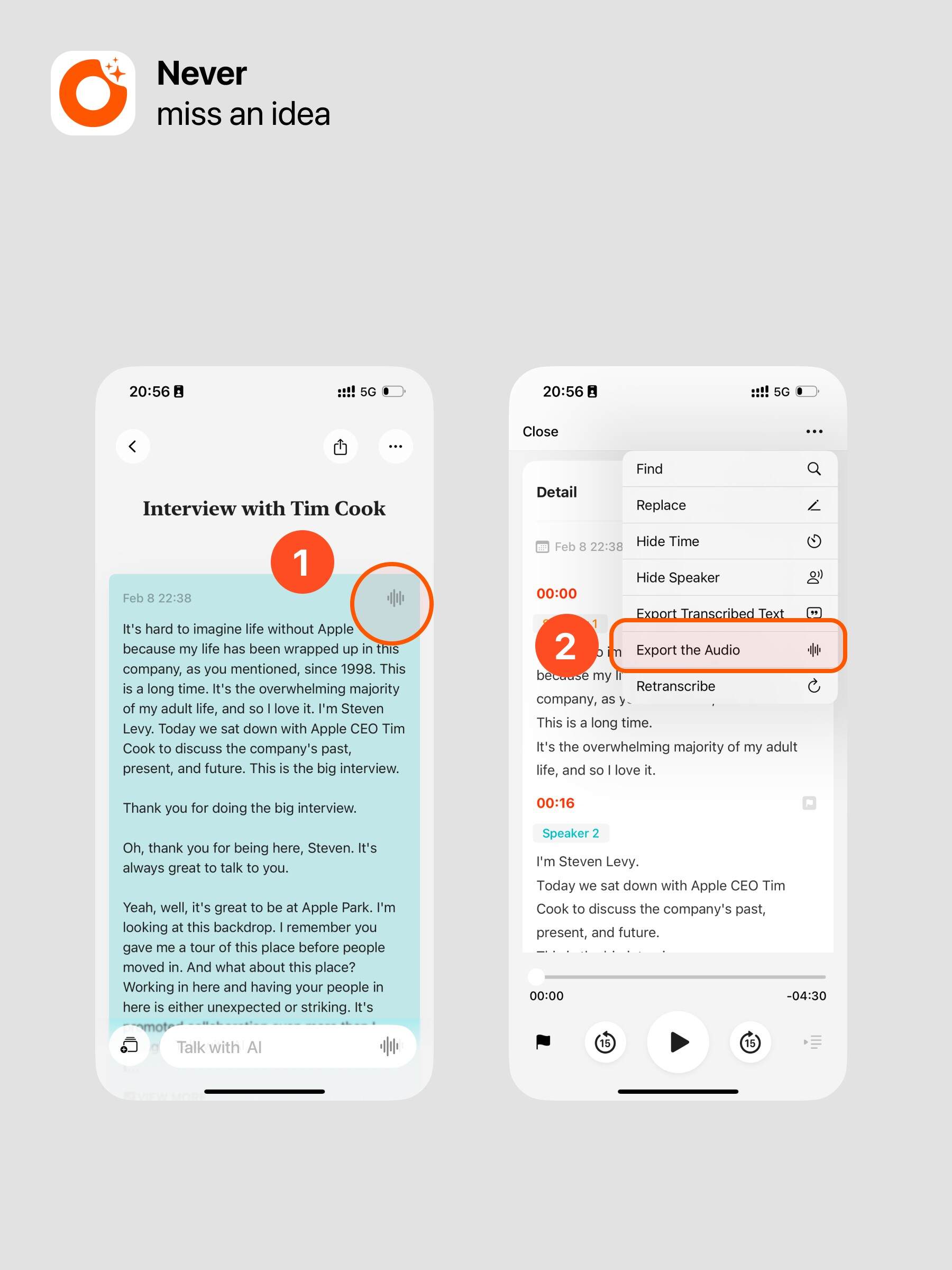
- Content shorter than 10 minutes:
Click the button at the top right of the text card to enter the transcription details. Then click “More” and select Export Audio.
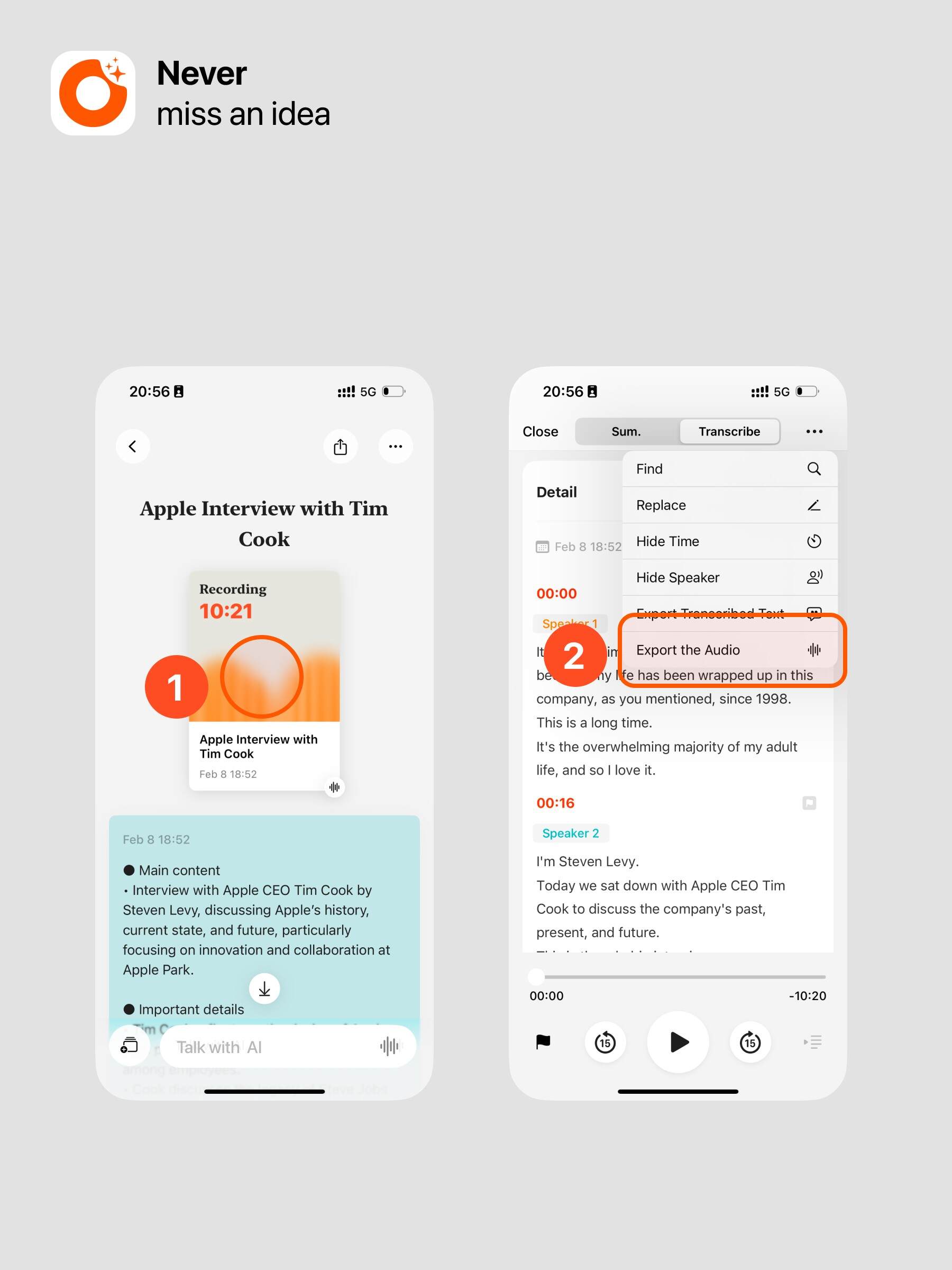
- Content longer than 10 minutes:
Click the orange card to enter the transcription details. Then click “More” and select Export Audio.